
How to create & upload a video
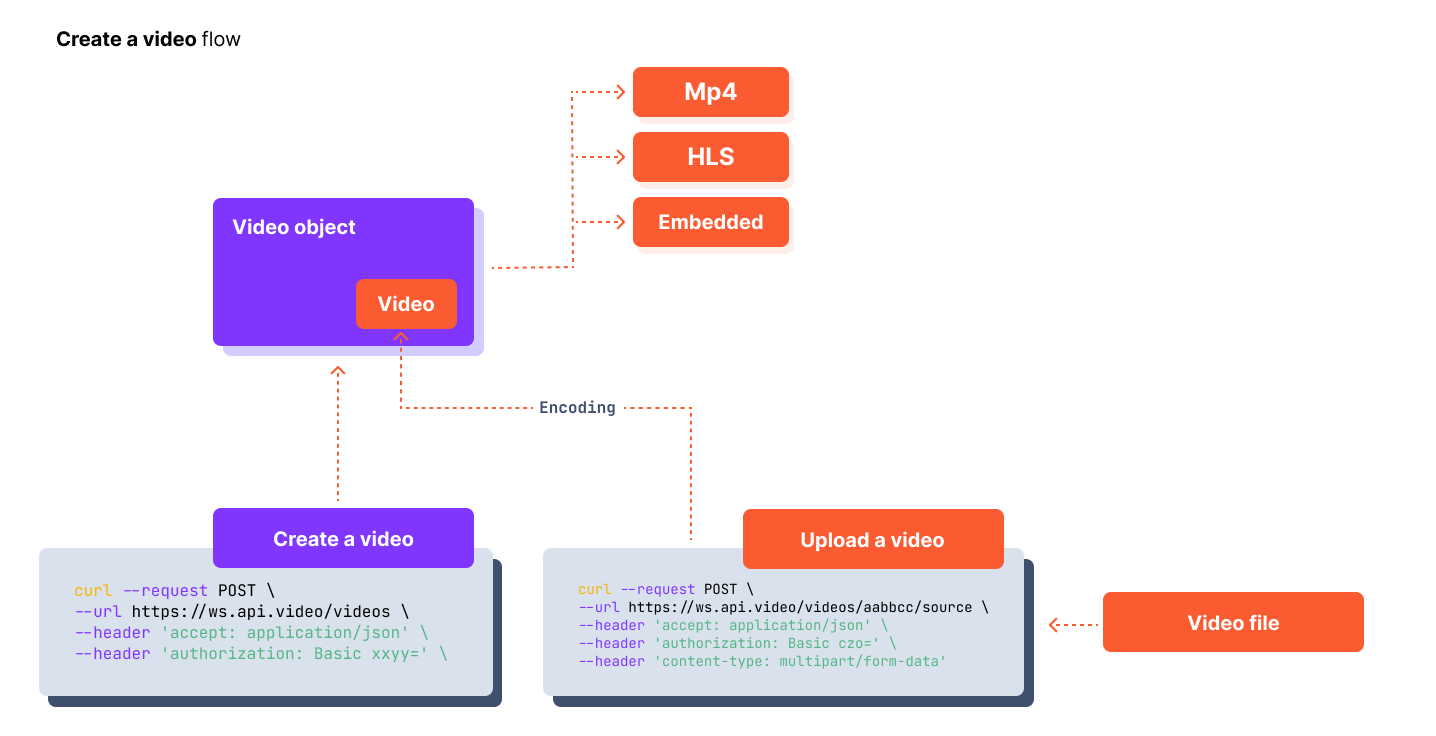
The concept of creating and uploading a video is pretty simple:
- Create a video object: Think about it as a box or shell for the video. Once you've created a video object, it's an empty shell, however, it has an id and assets.
- Upload a video: Now you can upload your video into that object.
A tutorial for uploading a video with curl can be found here
A more visual representation can be found below:
Important things to know
All qualities encoding: The video object will include up to 6 responsive video streams from 240p to 4K
Video size: There's no file size limitation but the files will be compressed to fit delivery needs (4k max def with x264 + aac at 60fps max )
Highest quality encoding by default: Mp4 encoded versions are created at the highest quality (max 4K) by default.
360° videos support: Panoramic videos are videos recorded in 360°. You can toggle this after your 360° video upload.
Video Access Management: When creating a video object, it can be either private or public. The feature allows you to change it later by updating the video object.
Progressive Upload: Ability to upload videos in a progressive manner while they are being recorded.
Progressive video upload & uploading large videos ⏫
Some videos you might upload could be very large in size. We made sure that this is addressed and that there's a convenient way to upload large videos while breaking them into chunks. Please be sure to read the guide on how to make progressive video upload.
Video Access Management 🔒
The video object will be created as public by default. If you want to make the video private, you just need to create a private video object or update it later. You can read all about Private Videos here
- Searchable parameters: title, description, tags and metadata
$ curl https://ws.api.video/videos \

-H 'Authorization: Bearer {access_token} \

-d '{"title" : "My video", "description" : "so many details", "mp4Support" : true }'
Create a video from a URL 🔗
You can also create a video directly from a video hosted on a third-party server by giving its URI in source parameter:
        $ curl https://ws.api.video/videos \

        -H 'Authorization: Bearer {access_token} \

        -d '{"source":"http://uri/to/video.mp4", "title":"My video"}'
In this case, the service will respond 202 Accepted and ingest the video asynchronously.
Track users with Dynamic Metadata 🔍
Metadata values can be a key:value where the values are predefined, but Dynamic metadata allows you to enter any value for a defined key. To defined a dynamic metadata pair use:
"metadata":[{"dynamicKey": "__dynamicKey__"}]
The double underscore on both sides of the value allows any variable to be added for a given video session. Added the the url you might have:
<iframe type="text/html" src="https://embed.api.video/vod/vi6QvU9dhYCzW3BpPvPsZUa8?metadata[classUserName]=Doug" width="960" height="320" frameborder="0" scrollling="no"></iframe>
This video session will be tagged as watched by Doug - allowing for in-depth analysis on how each viewer interacts with the videos.
Resources
-
Full list of tutorials that demonstrate this endpoint.